Separate private and irrelevant files
Keep only what the task needs
After this, you'll be able to create a privacy and exclusion list and use it to make Claude's work with local files safer and easier to verify.
Before you start
Complete Inventory the source files first.
The idea
A file workflow should send Claude only the files the job needs. This lesson asks you to make a privacy and exclusion list, not a broad promise that Claude can use files. The output should be specific enough that you can inspect what Claude read, what it produced, and what still needs review.
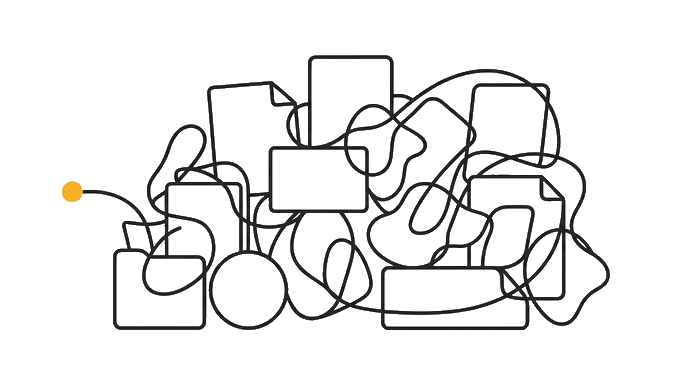
Here is the before and after: Before, private notes, old exports, drafts, and personal files sit beside the real source. After, the exclusion list says what stays out, what can be summarized, and what needs approval. For example, a client folder might include notes, drafts, exports, and old versions. The lesson output should say which files are in scope, which are out, what Claude is making, and how you will prove the result came from the right source.
Now try it: Mark each file keep, exclude, summarize only, or approval required. Make one choice before asking Claude to work: folder, file set, output shape, source check, access path, or maintenance rule. That choice keeps desktop file work from becoming vague local search.
| Before | After | |
|---|---|---|
| Input | Scattered | Named |
| Output | Guessing | a privacy and exclusion list |
| Check | Hidden | Visible |
| Next step | Unclear | Ready |
The lesson turns a loose desktop files idea into an artifact you can inspect.
The lesson is done when you can show the source boundary, the output, and the check that proves the output is safe to use.
Try it (14 min)
Watch out for
- Letting sensitive files stay in the source folder because they might be useful.
- Excluding files without explaining why.
- Using real private files as test data.
Paste this into Claude
Review this source inventory: [paste]. Create a privacy and exclusion list with File, Keep/Exclude/Summarize Only/Approval Required, Reason, Sensitivity, and What Claude Must Not Do With It.

If any input is missing, ask me up to three questions before producing the artifact. Then return five sections: Finished Artifact, Realistic File Example, Assumptions To Check, What I Should Use In The Next Lesson, and One Risk If I Trust This Without Fixing It. Keep the answer practical enough that I can paste it into my folder workflow notes.
What a good response looks like
Finished Artifact:
- a privacy and exclusion list
- Why it matters: it gives the folder workflow a concrete thing to inspect instead of a vague intention.
- Use it next: paste this artifact into the next lesson before asking Claude to write, build, import, publish, or review anything.

Reality Check:
- The artifact names the user, input, decision, owner, or proof it depends on.
- The weakest assumption is visible.
- The next step can be completed in one sitting.
What good looks like
- Every source file has a keep or exclude decision.
- Sensitive files are marked.
- Approval-required files are named.
- Claude's limits are clear.
Go deeper (8 min)
Paste this into Claude
Without rereading the lesson, explain why a privacy and exclusion list matters in three bullets. Then apply it to a second file example: [describe a different folder or document set]. Return What Changed, What Stayed The Same, What To Check Before Trusting The Output, and the exact next action.
What a good response looks like
Transfer Check:
- What changed: the second example has a different audience, input, or delivery context.
- What stayed the same: a privacy and exclusion list still needs a source, a review check, and a next step.
- Before trusting it: inspect the source check that would catch a wrong assumption.
- Next action: run the check once, then carry the revised artifact into the next lesson.
What good looks like
- You explained the lesson idea from memory before applying it again.
- The second example changes the artifact instead of copying the first answer.
- The trust check names a real risk.
- The next action can be done in one sitting.
When this breaks
- Breaks when private files stay in scope because exposure grows without benefit.
- Fails when irrelevant files stay in scope because they add noise to the answer.
AI can help with this
Paste the exercise prompt into Claude with your real folder or file context. Ask Claude to interview you one question at a time, produce a privacy and exclusion list, challenge the weakest assumption, and rewrite the artifact once so it is ready for the next file step.
You can now
You can point to a privacy and exclusion list.
- You can explain which files are in scope.
- You can name the assumption that still needs checking.
- You can use the output in the next lesson.
Key takeaways
Privacy and relevance both improve when the source set is trimmed before the task.
- Files should be kept for a reason.
- Sensitive files need explicit handling.
- Approval can be required per file.
- Test runs should avoid private data.