The three systems: which 'routines' this track teaches
After this, you'll understand the three distinct Claude scheduling systems, know which one this track teaches, and be able to explain why Cowork Scheduled Tasks is the right starting point for non-developers.
Before you start
No prerequisites. This is the orientation lesson for the track.
The idea
Three separate Claude systems share the word "routines," and mixing them up wastes hours. They are Cowork Scheduled Tasks, Claude Code Desktop Scheduled Tasks, and Claude Code Claude Code Routines, and only one of the three is built for someone who does not write code.
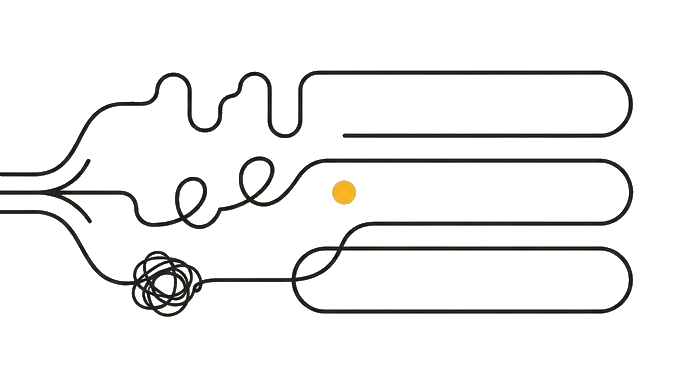
First, two words this track uses on every page. Cowork is the mode inside the Claude desktop app where Claude can reach your files and connected apps (Gmail, your calendar) instead of only chatting. The Claude desktop app is a program you download from claude.com/download and install on your computer; it is not the claude.ai website you open in a browser. If you have only ever used Claude in a browser tab, the scheduling features in this track live in that separate desktop app, so installing it is step one.
Here is the before and after: Someone wants a daily morning briefing, searches "Claude routines," and lands on the Claude Code Routines docs, which open with config files and a deploy step, so they assume scheduling is a developer skill and give up. The fix is knowing the map before you search: the briefing never needed code, because Cowork Scheduled Tasks does the whole job from inside the desktop app they can install in two minutes.
The split is by audience. Cowork Scheduled Tasks lives in Cowork mode in the Claude desktop app and needs no programming: you write a plain-language prompt and pick how often it repeats. The other two are developer tools.
Claude Code Desktop Tasks live in Claude Code, a separate app where engineers schedule scripts and test suites. Claude Code Routines run on Anthropic-managed infrastructure so they fire while your computer is off, but they require writing a config file and deploying code, which is why Module 7 saves them for later.
Now try it: Open the Claude desktop app and say "I want to run [describe your task, e.g. a morning briefing from my email] on a schedule. I am not a developer. Which of the three Claude scheduling systems fits, and which should I ignore for now?" The answer should point you straight at Cowork Scheduled Tasks.
| Cowork Scheduled Tasks | Claude Code Desktop Tasks | Claude Code Routines | |
|---|---|---|---|
| Audience | Non-developer | Developer | Developer |
| Execution | Local machine | Local machine | Cloud |
| Computer must be on | Yes | Yes | No |
| Requires code | No | Yes | Yes |
This track covers Cowork Scheduled Tasks only.
Three systems share the vocabulary. Only Cowork Scheduled Tasks needs no code and runs from the Claude desktop app you install, which is why it is where this track starts.
Try it (10 min)
Watch out for
- Searching for 'Claude routines' documentation and landing on the Claude Code Routines docs, which are aimed at developers deploying code. The Cowork help center article is a different page entirely.
- Assuming Cowork Scheduled Tasks and Claude Code Scheduled Tasks are the same because the scheduler UI (the on-screen buttons and panels you click) looks similar in screenshots. The apps are different, the audiences are different, and the execution environments are different.
- Starting with Claude Code Routines because they sound more powerful. Always-on cloud execution is genuinely more capable, but it requires understanding deployment configuration. Start with Cowork unless you have a specific reason to need cloud execution.
Paste this into Claude
I want to figure out which Claude scheduling system fits my situation, and I would rather answer a few short questions than guess. Walk me through it one question at a time, and present each one as multiple choice so I can pick an option instead of writing an answer. (The feature that shows clickable multiple-choice options is called AskUserQuestion. Use it.)

Ask me these three, one at a time:

1. Do I have Claude Code installed (it is a separate app from the regular Claude desktop app)?
2. Does my task need to run even when my computer is off or asleep?
3. Am I trying to automate everyday work (briefings, reports, file organization), or am I trying to run code and manage software projects?

After I answer all three, tell me which of the three systems I should use, explain why in two sentences, and tell me my exact next step.
What a good response looks like
Based on your answers:

**Your system: Cowork Scheduled Tasks**

You have the regular Claude desktop app, your tasks are knowledge work rather than code management, and you do not need tasks to fire when your computer is off. Cowork Scheduled Tasks handles all three conditions correctly.

**Your next step:** Make sure you have the Claude desktop app installed (claude.com/download). Open it, look for the Scheduled Tasks panel in the sidebar, and continue to the next lesson in this module. You are in the right place.
What good looks like
- You can name the three scheduling systems and the key difference between each
- You know whether your computer needs to be on for Cowork Scheduled Tasks to fire
- You can describe the audience split: Cowork is for everyday users, Claude Code systems are for developers
- You know that Modules 0 through 6 of this track cover Cowork Scheduled Tasks only
When this breaks
- Breaks when you configure a task in Claude Code Desktop believing it will run your Cowork workflows. The two apps do not share task state; a task created in one is invisible to the other.
- Breaks when you read Module 7 (the ceiling lesson) before establishing a working Cowork task. Knowing the limits of a system you have never used produces anxiety, not understanding. Orientation first, ceiling later.
AI can help with this
Open Claude desktop and ask it to classify your task as Cowork Scheduled Tasks, Claude Code Desktop Scheduled Tasks, or Cloud Routines. Do not configure anything until it names the system, audience, execution location, and whether your computer must be awake.
You can now
You can complete the lesson outcome inside the correct Claude scheduling surface.
- You can name the three scheduling systems and the key difference between each.
- You know whether your computer needs to be on for Cowork Scheduled Tasks to fire.
- You can describe the audience split: Cowork is for everyday users, Claude Code systems are for developers.
- You know that Modules 0 through 6 of this track cover Cowork Scheduled Tasks only.
Key takeaways
Three systems share similar vocabulary, but only one requires no code and runs from your existing Claude desktop app. That is Cowork Scheduled Tasks, and it is what this track teaches.
- Cowork is the mode in the Claude desktop app (downloaded from claude.com/download, separate from the claude.ai website) where Claude can use your files and connected apps. That desktop app is where every task in this track is built.
- Cowork Scheduled Tasks, Claude Code Desktop Tasks, and Claude Code Routines are three separate products with three different audiences. This track covers only the first.
- Cowork Scheduled Tasks targets everyday Claude users, not developers. No code, no config files, no deployment.
- Claude Code Routines run on Anthropic-managed infrastructure and fire even when your computer is off. They require developer setup and are covered only in Module 7.
- Cowork's one trade-off is that your computer must be awake and Claude open at the scheduled time. For daily briefings, weekly file cleanups, or inbox triage, you will almost never hit that ceiling, which is why it covers most non-developer needs without anything more powerful.
Go deeper