Export to PPTX, Google Slides, or Canva
After this, you'll know how to export a finished deck from Claude Design into the tools you already present from, including PowerPoint, Google Slides, Canva, Gamma, or a fixed PDF, so the deck doesn't get stuck in the canvas.
Before you start
Complete Style a deck from your website's brand first; once your deck looks right, this lesson gets it out of Claude Design and into the tool you actually present from.
The idea
*A deck you build in Claude Design is not trapped there. You export it, which means saving it out of the tool, into a format you can present from or keep editing elsewhere.* The Export button sits at the top right of the canvas, and it offers a few destinations.
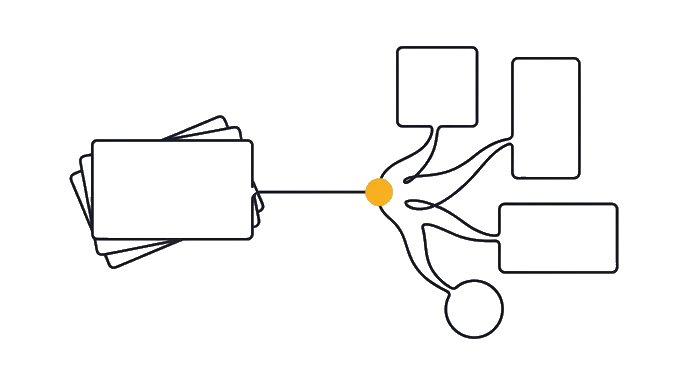
This matters because you probably present from a tool you already know. Your team may live in PowerPoint, your school in Google Slides, your social posts in Canva. The deck is only useful once it lands where you actually work.
The main exits for a deck are worth knowing by name:
- PPTX is the PowerPoint file format. Export this and you can open the deck in PowerPoint and keep editing. - Google Slides does not have a direct button, but the path is simple: export the PPTX, then in Google Slides choose File, then Import slides, and bring the PPTX in. - Canva (a popular drag-and-drop design app) and tools like Gamma can be destinations when your account shows them. Some destinations need account, connector, or workspace setup first; a later lesson covers that routing in full. - You can also export a PDF (a fixed, share-anywhere document), standalone HTML, or a project .zip (a bundle of all the files), depending on what you need.
Here is the before and after: Someone finishes a great deck, then realizes they have no idea how to present it from their usual tool, and the deck dies in the canvas. Someone else exports the PPTX, opens it in PowerPoint or imports it into Google Slides, and presents that afternoon. Same deck, but one of them actually shipped it.
Why know the exits before you build is planning ahead. If your team needs PowerPoint, you know PPTX is your exit; if you post on social, you know Canva or another destination may need setup ahead of time. Knowing the destination keeps the last step from becoming a surprise.
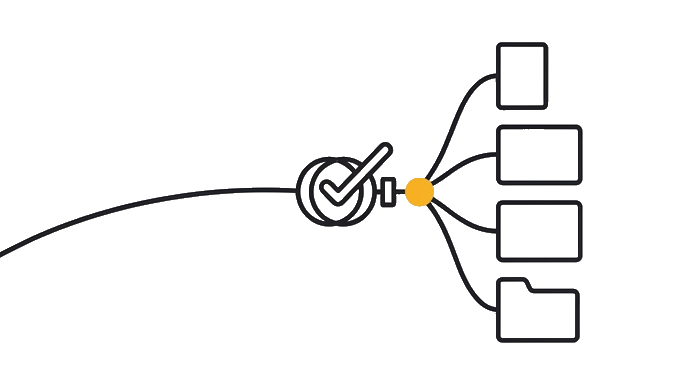
A finished deck exports to PowerPoint, Google Slides, Canva, Gamma, PDF, HTML, or a project bundle. Pick your real tool and know its path out before you build.
Try it (8 min)
Watch out for
- Looking for a 'Send to Google Slides' button. There isn't one; export the PPTX and import it into Google Slides through File, then Import slides.
- Trying to send to Canva, Gamma, or another destination before checking account and workspace setup. Some destinations need setup before the option works.
- Emailing an editable file when you want a fixed one. A PDF keeps your layout intact; a PPTX lets the recipient rearrange it.
- Building the whole deck without knowing where it has to land. Decide your destination early so the final export isn't a surprise.
Paste this into Claude
I've built a deck in Claude Design and I need to get it into the tool I actually present from. Help me pick the right export and avoid the common snags.

I usually present or edit slides in: [NAME YOUR TOOL, e.g. PowerPoint, Google Slides, Canva, or "I just need a PDF to email."]

Please:
1. Tell me which export to choose for my tool, in plain steps.
2. If I named Google Slides, give me the exact path (export PPTX, then File, then Import slides).
3. If I named Canva, Gamma, or another destination, note what account, connector, or workspace setup I should check first.
4. Suggest which export to use if I only want to email the deck to someone who can't edit it.
What a good response looks like
Here's your export plan:

**If you present from PowerPoint:**
Export the deck as PPTX from the Export button (top right), then open that file in PowerPoint and keep editing.

**If you present from Google Slides:**
There's no direct button. Export the PPTX first, then in Google Slides go to File, then Import slides, and bring the PPTX in.

**If you post from Canva:**
Check that the Canva destination is available and pointed at the right workspace. Once it is available, choose Send to Canva and inspect the deck in Canva before posting.

**If you only need to email a fixed copy:**
Export a PDF. It looks the same on every device and the recipient can't accidentally rearrange your slides.
What good looks like
- You can name the main deck exits: PPTX (PowerPoint), Google Slides via PPTX import, Canva or Gamma when available, and PDF
- You know Google Slides has no direct button; you import the PPTX instead
- You know some destinations need account, connector, or workspace setup first
- You can pick the right export for emailing a non-editable copy (PDF)
When this breaks
- Breaks when you assume every tool has a one-click button. Google Slides goes through a PPTX import, and connector destinations can require setup, so a deck can feel 'stuck' only because you haven't taken the right path out.
- Breaks when you forget the deck still has to leave the canvas to be useful. A beautiful deck nobody can present is unfinished work; the export is the real last step.
AI can help with this
Not sure which export fits your setup? Inside Claude Design, ask: 'I present from Google Slides, what's the exact way to get this deck there?' Claude walks you through the PPTX-then-import path step by step so you don't guess.
You can now
You can complete the lesson outcome in Claude Design or in the supporting tool the lesson names.
- You can name the main deck exits: PPTX (PowerPoint), Google Slides via PPTX import, Canva or Gamma when available, and PDF.
- You know Google Slides has no direct button; you import the PPTX instead.
- You know some destinations need account, connector, or workspace setup first.
- You can pick the right export for emailing a non-editable copy (PDF).
Key takeaways
A Claude Design deck exports to PowerPoint (PPTX), Google Slides (by importing the PPTX), Canva or Gamma when available, PDF, HTML, or a project bundle. Knowing your real destination keeps the last step from becoming a surprise.
- Export means saving the deck out of Claude Design; the Export button is at the top right.
- PPTX opens in PowerPoint; Google Slides imports that same PPTX via File, then Import slides.
- Canva, Gamma, and other destinations may need account, connector, or workspace setup first, covered in a later lesson.
- A PDF is the fixed, share-anywhere copy for emailing someone who shouldn't edit it.
- Decide your destination before you build, so the final export is planned, not a scramble.
Go deeper