The Connector directory: what the long list actually means
The real question is not whether your tool is there
After this, you'll be able to browse the Connector library, find a tool you use, and judge it by the right question: not 'is it here?' but 'what can Claude actually do with it, read-only or read-and-write?'
Before you start
Complete Connecting email and calendar first; you now know how a single Connector behaves, so this lesson widens that to the whole library and the question of what each one can do.
The idea
The useful question about the Connector directory is not "is my tool there?" but "what can Claude do with it?" Each Connector exposes its own set of actions, and those differ from one to the next.
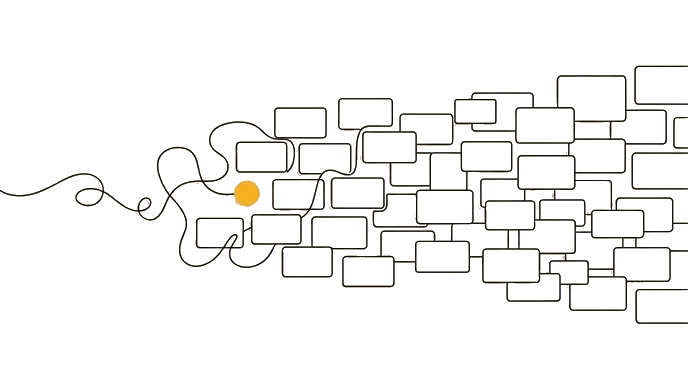
The list is long enough that your common tools (Drive, Slack, Notion, GitHub, calendars, many CRMs, the customer-record systems sales teams live in) are almost certainly in it. So the count is not the useful part. Everything in this directory is free to use. That makes it different from a custom connector, the kind you add by web address, where the free plan includes one.
One Connector lets Claude read messages; another lets it read and post; a third reads records but cannot create them. Reading that action list before you rely on it is the whole skill.
Here is the before and after: Before, you see the long directory, assume Claude can do anything in any tool, and get stuck when it cannot post the Slack message you expected. After, you open the Slack Connector first, read that it supports reading and sending messages, and now you know exactly what to ask for.
Now try it open the Connector directory, find one tool you use daily, and write down two things that Connector says Claude can do and one thing it cannot.
The length of the list tells you nothing; the action list on the one Connector you are about to use tells you everything.
Try it (10 min)
Watch out for
- Stopping at 'my tool is in the list.' The action list on that Connector is what tells you what is possible.
- Assuming two similar tools have identical Connectors. Reach varies; read each one's supported actions.
- Reading the size of the directory as a promise. A long list is a catalog, not a guarantee of any one action.
- Picking a Connector by brand familiarity instead of by the task you need it to do.
- Forgetting some tools need an admin to approve the connection on a work account before you can use it.
Paste this into Claude
Help me judge a specific Connector by what it can actually do, not by the size of the library.

The tool I use most that I want to connect: [e.g. Slack / Notion / HubSpot / Asana].

I have opened its Connector page and here is what it lists as supported actions:
[paste or type the actions the Connector page shows, e.g. "search messages, send messages, read channel history"]

Now help me reason about it:
1. Group those actions into READ actions (Claude looks at data) and WRITE actions (Claude changes or creates something)
2. Give me two concrete tasks I could ask for that use only the READ actions
3. Give me one concrete task that would need a WRITE action, and confirm whether this Connector supports it
4. Name one task I might assume Claude can do with this tool that is NOT in the listed actions, so I am not surprised later

Explain any term in plain language as you go.
What good looks like
- Claude correctly sorted the listed actions into read versus write
- The two read-only task ideas only use actions the Connector actually lists
- Claude checked the write task against the listed actions instead of assuming
- Claude named at least one plausible task the Connector does NOT support
- You can state, in one sentence, what this specific Connector lets Claude do
When this breaks
- Breaks when you plan a workflow around an action the Connector does not expose, because the integration only does what its action list says, no matter how capable the tool is on its own.
- Breaks when a work account blocks the connection at the admin level, because individual setup cannot override an organization policy, and the Connector stays unavailable until IT approves it.
AI can help with this
Open a Connector you use, copy its listed actions, then paste: 'Sort these actions into read and write, give me two tasks that use only the read actions, one that needs a write action, and one task I might wrongly assume is supported but is not in this list.'
You can now
You can complete the lesson outcome in a real Claude chat, Project, Artifact, Connector, Desktop, or Code surface.
- You can verify that claude correctly sorted the listed actions into read versus write.
- You can verify that the two read-only task ideas only use actions the Connector actually lists.
- You can verify that claude checked the write task against the listed actions instead of assuming.
- You can verify that claude named at least one plausible task the Connector does NOT support.
Key takeaways
The long Connector directory tells you your tool is probably there. What matters is the action list on the specific Connector, which is what actually determines what Claude can do with that tool.
- Judge a Connector by its listed actions, not by the size of the overall directory.
- Sort every Connector's actions into read and write so you know what Claude can change.
- Expect similar tools to have different Connector reach, and read each one before relying on it.
- Name the task first, then find the Connector that supports it, rather than the reverse.
- Check whether a work account needs admin approval before a Connector will turn on.