Manage your Cowork context files without touching a terminal
After this lesson, you'll have Obsidian installed, pointed at your Claude Cowork folder, a SKILLS subfolder created, and one context file updated via Obsidian and verified to reflect in a fresh Cowork session.
Before you start
Complete Set up your Cowork folder so Claude knows you on day one first; this lesson teaches you to maintain and edit the files that lesson created. If you completed Build your first Skill and put it on a schedule, you also have Skill files to organize into the SKILLS subfolder.
The idea
Obsidian lets you read and update your Cowork context files cleanly without touching a terminal, so they stay current instead of going stale. A terminal is the intimidating black command-line window that programmers type into, and the good news is you never open one here. Your Cowork folder runs on plain text files, and that is the source of its power: Claude reads them, writes to them, and the folder stays yours.
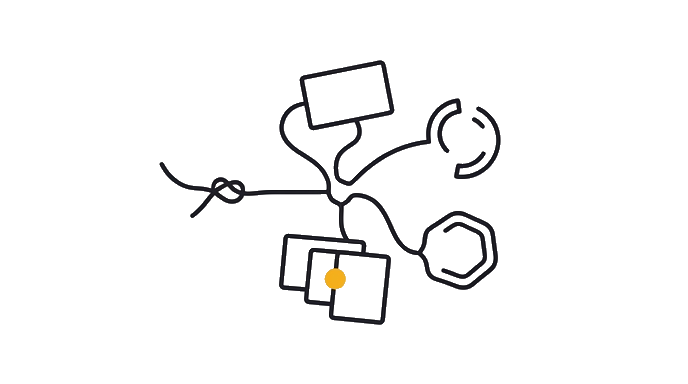
Here is the before and after: without the right viewer, a plain text file shows raw markdown (hashtags everywhere, asterisks around words) instead of formatted text, so you close it and never update it, and your context file slowly drifts from who you actually are. With Obsidian pointing at the same folder, you click a file and see real headers, bold text, and bullet points. You edit it like a document, save, and Cowork reads the updated version next session.
Why Obsidian, and why not something else: Obsidian is a free app that opens a folder on your disk and shows it as a tidy, searchable set of notes. You click a file and it shows real headers, bold text, and bullet points. You edit it there and save, and the file on disk is unchanged, so Cowork still reads it exactly as before.
This is the only thing that matters: Obsidian never alters how the file is stored. The other tools each break that rule.
Notion imports your files into its own database, so every time Cowork writes a new file you have to re-import. Google Docs are not plain text files, so you would convert back and forth every session. VS Code shows markdown too, but it is built for programmers and assumes you know your way around a terminal.
Obsidian reads the folder you already have, shows it cleanly, and writes back to disk without touching the format. That is why it fits this job and the others do not.
The SKILLS subfolder pattern: when you build a Skill in Cowork (covered in Lesson 3), the Skill file lands in your OUTPUTS folder by default. Move it into a folder called SKILLS inside your Cowork directory. Now Obsidian shows every Skill as a note: its name, its trigger description, and its body of instructions.
You can search across all Skills at once, find the one that is outdated, open it, change one line, and save. The file is live, so the next Cowork session picks it up. Keep each Skill note lean and matching the installed Skill: do not document the Skill's history inside the note, because the note IS the Skill.
The mid-session update pattern: you are in a Cowork session and Claude does something you want it to stop doing forever. Do not re-explain it in this session. Open Obsidian, find the relevant file (usually about-me.md or your voice file from Lesson 4), and add or change one specific line: "Remember [what you want it to remember]" or "Replace [what it does now] with [what you want] always."
Save the file, then open a new Cowork session and point it at the same folder. Claude reads the updated file and applies the change from the very first message. You prompted once, and it holds forever.
Obsidian is where you maintain your brain. Cowork is where you build. Both look at the same folder.
- ObsidianWhere you read and edit your context files cleanly.
- Claude CoworkWhere Claude reads your files and builds your work.
- Cowork folderThe plain text files on your disk. The one source of truth.
- SKILLS subfolderOne note per Skill, kept in sync with the installed version.
Try it (15 min)
Watch out for
- Pointing Obsidian at the wrong folder. When you click 'Open folder as a vault,' navigate to your actual Claude Cowork folder, not your Desktop or Documents root. Obsidian will show whatever folder you point it at; if you point it at the wrong one, your edits go nowhere Cowork can find.
- Editing files in Obsidian while a Cowork session is already open. Cowork reads context files when a session starts. If you update a file mid-session, Claude has already read the old version. The fix is to open a new session after any Obsidian edit, not to expect the current session to update.
- Creating a new Obsidian vault instead of opening your existing Cowork folder. Obsidian uses the term 'vault' to mean a folder it manages. You want to open your existing Claude Cowork folder as that vault, not let Obsidian create a new empty folder somewhere else.
- Letting SKILLS notes grow into documentation. Each note should mirror what the installed Skill actually does, not document its development history. If you revised a Skill three times, the note shows the current version only. The previous versions are irrelevant to Claude.
Paste this into Claude
I just updated a line in my about-me.md file using Obsidian.

The line I changed: [paste the old text here]
What it now says: [paste the new text here]

Start a new task based on this updated identity. Do not reference the old version of this line. If you're not sure which version you read, tell me what the file says about [the topic you changed].
What a good response looks like
Starting fresh Cowork session. Folder selected: /Users/jane/Claude Cowork.

Your message: "I just updated a line in my about-me.md file using Obsidian. The line I changed said: 'I write responses in bullet points.' It now says: 'I never use bullet points unless explicitly asked. Default to short paragraphs.' Start a new task based on this updated identity. If you're not sure which version you read, tell me what the file says about formatting."

Claude's reply: "I can see in about-me.md: 'I never use bullet points unless explicitly asked. Default to short paragraphs.' Understood. I'll write everything in paragraph form from here. What are we working on today?"

The update took 45 seconds in Obsidian. It will hold for every future session without being mentioned again.
What good looks like
- Obsidian is installed and pointing at your Claude Cowork folder (you can see ABOUT ME, OUTPUTS, TEMPLATES, and any Projects folders in the left sidebar)
- A folder named SKILLS exists inside your Cowork directory, visible in Obsidian's sidebar
- You moved or created at least one Skill note into the SKILLS folder (if you have no Skills yet, create a placeholder note called 'my-first-skill.md' with a one-line description of a task you repeat weekly)
- You made at least one edit to a context file (about-me.md or your voice file) directly in Obsidian and saved it
- You opened a fresh Cowork session after saving, pointed it at the same folder, and Claude's response reflected the change you made
Go deeper (10 min)
Paste this into Claude
I want to build a SKILLS note for a task I repeat every week.

The task: [describe it in one sentence, e.g. "drafting a client status update email"]
How I currently handle it: [paste the prompt you repeat, or describe what you tell Claude each time]

Help me write a SKILLS note for this task. The note should include:
- A name for the Skill (lowercase, hyphens only, no spaces)
- A one-paragraph trigger description (what you say to invoke it, what NOT to say)
- The body instructions (the exact rules Claude should follow for this task)

Keep it under 500 words total. I'll save this note as [skill-name].md in my SKILLS folder in Obsidian.
What good looks like
- The SKILLS folder in your Cowork directory contains at least one .md note with a Skill name, trigger description, and body instructions
- The Skill note is visible and readable in Obsidian (formatted correctly, not raw markdown symbols)
- If you have an installed Skill from Lesson 3, its note in SKILLS matches the installed version; they are not out of sync
- You can search across your Cowork folder in Obsidian using Cmd+Shift+F (Mac) or Ctrl+Shift+F (Windows) and find the Skill by a keyword in its body
When this breaks
- Breaks when you edit in Obsidian but a Cowork session still reads the old version. This happens because context files are loaded at session start. The fix: open a new Cowork session after any Obsidian edit. The new session reads the updated file from disk.
- Breaks when your SKILLS folder and installed Skills diverge. You update the Skill inside Cowork but forget to update the Obsidian note, or vice versa. The note and the installed Skill drift apart. Fix this by treating the two as one atomic update: when you change the installed Skill, open Obsidian and change the note before closing the session.
- Breaks when a cloud-sync plugin (an optional add-on you install into Obsidian) injects hidden metadata (extra bookkeeping text you never see) into your .md files. Standard cloud sync (iCloud, Dropbox) is fine if your Cowork folder already lives there. The risk is Obsidian plugins that add their own sync layer. If a plugin writes hidden text into your files, Cowork may run into characters it does not expect. Stick to the default Obsidian setup with no sync plugins; your computer's built-in cloud sync handles backup.
AI can help with this
Open Cowork and say: 'I want to update my about-me.md to add a new rule. The rule is: [describe it]. Add it to the Instructions for Claude section and keep the file under 2,000 tokens.' Claude edits the file. Then open Obsidian to confirm the change landed, and verify it in a fresh session.
You can now
You can point Obsidian at the real Cowork folder on disk.
- You can create and organize a SKILLS folder without using a terminal.
- You can edit one context file in Obsidian and save it.
- You can prove a fresh Cowork session reads the updated wording.
Key takeaways
Obsidian makes your Cowork folder navigable. You point it at the same folder Claude reads, edit files the way you would edit a document, and the changes land immediately on disk. Open a new Cowork session after any edit, and your updated context is live.
- Obsidian reads the folder already on your disk and writes back without changing the file format. Cowork reads those same files unchanged. There is no sync, no import, no conversion.
- The SKILLS subfolder keeps every installed Skill visible and editable. One note per Skill, matching the installed version. Edit the note in Obsidian, and the next Cowork session picks up the change.
- The mid-session update pattern: spot something Claude does wrong, open Obsidian, add 'Remember [X]' or 'Replace [X] with [Y] always' to the relevant file, save, open a new session. The change holds from the first message forward.
- Context files are read at session start. Edits made in Obsidian while a Cowork session is already running do not apply to that session. Always open a new session after editing.
- Obsidian is brain maintenance. Cowork is building. Keep them separate, but know they look at the same folder.
Go deeper